AWindows 10 OS installation that’s free of all the telemetry data collection, a nagging Cortana, and practically all bloatware — sounds tempting, doesn’t it? Well, strap right in then. A tool called the MSMG toolkit allows you to do just that. And we will show you how to this in simple steps.
First of all, MSMG toolkit is afreeware softwareavailable at theMajorgeekswebsite. Thisbloatware removal tool for Windows 10cancustomize, add, or remove components and featuresof the Windows 10 operating system. Additionally, the constant updates to this Windows ISO customization tool enable you to edit and change newer Windows 10 versions and also Windows 8.1 or Windows 7.
Remove Windows 10 Bloatware in Simple Steps
To begin with, this free bloatware removing software comes with standard DOS command prompt method. But before you start thinking of how complicated things might get, let me stop you right there. In fact, it is prettysimple and straightforwardas you would only have to choose the right options available to you.
Getting Started
Before gettings started, make sure that you have theappropriate ISO buildof the Windows OS that you would like to remove preinstalled bloatware. Also, this process of creating a Custom Windows 10 installation is only possible when you are doing a clean install of the operating system.
Furthermore, the MSMG toolkit is a Windows software which is updated quite often, so verify that you are using the one which supports the Windows ISO version that you would like to customize.
Note: The developer hosts the latest version in hisMy Digital Lifeblog site. Bear in mind that you would have to create an account first to download it from there.
Requirements
1. Setup and Launch Windows 10 Bloatware Remover tool
After you have made sure that you have the fulfilled the requirements, let’s begin —
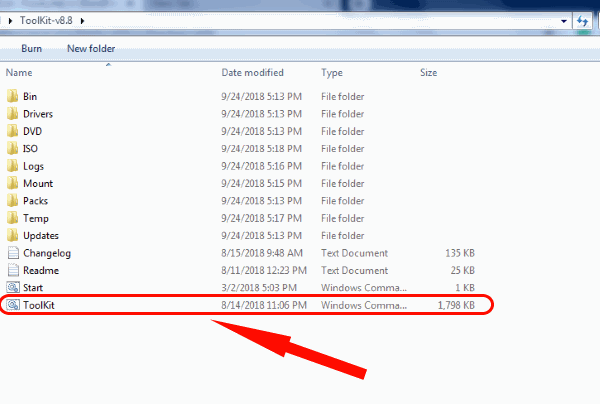
Importantly, check whether the install file in the folder is of WIM file type. Consequently, you might come across an error showing wrong/unrecognized file type if you have an ESD file. If that’s the case with your installation process, skip to the final section where we show you how toconvert an ESD file to WIM.
2. Select Windows 10 Source ISO Edition
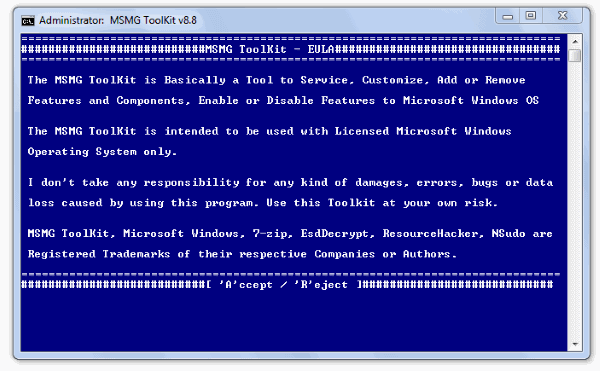
When you launch the MSMG toolkit, the command prompt window pops up with anEULA(End User Licence Agreement). As usual, it says that the developer is not to be held responsible for any of the mishaps like errors or bugs that might happen after installing the customized Windows 10 OS.
But after using this program for a while, it is safe to assume that we have faced no such problemsas long as the supported ISO version is used. Not to mention the proper steps to be followed.
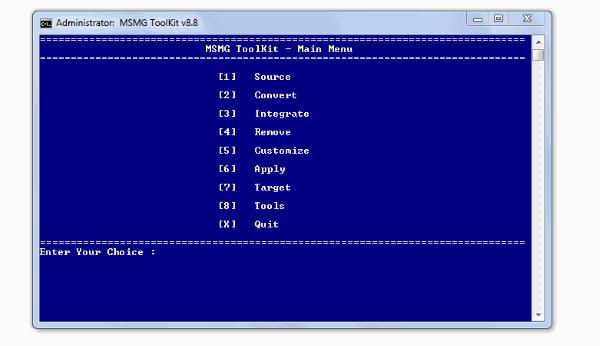
Consequently, you see the range of options available in the software to work with. Initially, you would want to select thesourceWindows 10 ISO that you want to configure.
Note:You can choose the editions by specifying arange (eg: 1 to 3)orspecific number (2). To select all the editions,press *.
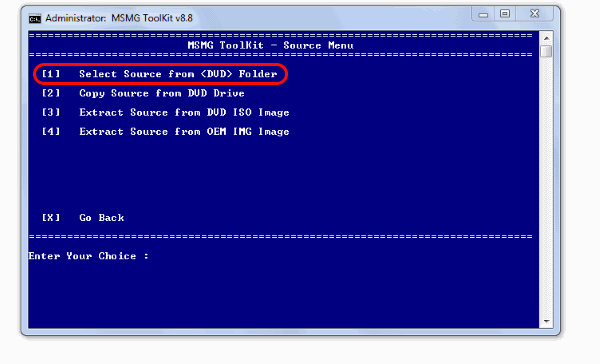
Additionally, you can choose to delete or add editions before you start removing bloatware from Windows 10 edition. To do this,
After waiting for a few moments for the process to complete, you can now start removing apps, features, and components, including Cortana and Windows Defender from Windows 10
3. Remove Bloatware apps and components from Windows 10
Aside from removing Windows 10 Cortana and Windows Defender, you can remove the pre-installed Microsoft apps. Even the complete app store can be removed if necessary. To start the fun part of uninstalling Windows 10 bloatware,
Remove Metro Apps and Associations
From the Main Menu,
Now, you will be presented with all the metro apps in the Wim image. You can choose to:
Furthermore, eliminating the bloatware apps from Windows 10 requires you to wait for some time for the process to complete especially if you chose to remove a whole lot of them.
Also, It would be only appropriate to remove the metro app associations once you have removed all the metro apps. For this,
Remove Windows 10 Components and Features
Now let’s get down to business, shall we? After all, for some removing or uninstalling the ever so annoying Telemetry data collections and the “never to be enabled” Cortana in Windows 10 is the best of their intentions.
Note: verify that you do not have updates or language packs or frameworks to be integrated to the ISO before doing this step. Integrations after removal of components arenot recommendedas this can cause a whole lot of problems. So,Skip to integration stepsbefore attempting to remove.
To remove Windows 10 Cortana, telemetry and other features and components,
As in the case of removing Windows 10 inbuilt applications, we are presented with the many components and features available on Windows 10. you may eitherremove Windows components one by one(by pressing the appropriate letter) orUninstall all Windows components at once( Press 1 ).
Also, you could have a look at the other Advanced Windows 10 bloatware Components that you can remove by pressing 3 to carefully choose to keep or not.
Just make sure the features that you are removing are not needed in Windows 10 for your particular use of the Operating System.Not all software and components in Windows 10 arebloatware. Hence, we recommend you choose wisely.
4. Disable Windows 10 Automatic Driver Updates and other tweaks (Optional)
Most important among the features of this best bloatware removal tool for Windows 10 is the additional tweaks option. Here, you can perform some nifty actions like Disable Automatic driver updates through Windows, Disable Cortana App entirely or even Disabling automatic downloading and Installing of 3rd Party Apps.
To customize/disable Windows 10 Settings,
5. Integrate Windows 10 Updates and Language Packs
We kept this at last because this is optional and only needed if you have particular Windows features, Updates, Drivers and Language packs needed to be integrated to the source Windows 10 ISO that we are customizing.
Most users might find this unnecessary and would be willing to skip it. In case, if you want to know how to do this,
6. Apply Changes to Source WIM Image
Now that’s all done let’s apply all these changes before we create our very own custom Windows 10 ISO.
Consequently, after you wait for a few moments, the changes will be applied.
7. Make an ISO DVD image
Finally, its time to build your very own custom Windows 10 ISO image. To start building the ISO,
Finally, Press x from the Main menu to Quit the Windows 10 Bloatware program.
Convert ESD file to WIM
As mentioned in the requirements, you might need the WinReducer ESD – Wim Converter application for this purpose. Additionally, there are many other tools available for exactly this need. But for the reason that it being one of the most popularly used and the fact that it worked pretty well for us, we recommend this ESD to WIM tool.
Setup the application
To use this software to convert ESD file to WIM,
Convert esd type to wim
Now you have set up the application and it is now ready to convert you ESD file to WIM. For this,
Consequently, you can go to the toolkit sources folder to have a look. There should be both the new wim file along with esd file (Depending on whether you chose to delete the original esd file after conversion in the program).
MSMG: Windows 10 Bloatware Removal tool
So that’s pretty much about it. As usual, we hope this article was of some use to you guys. Especially for the people who have spent countless hours on the web trying to figure out how to disable/remove some of the core components of Windows 10, this tool can be a godsend. Use the comment section below to mention if you guys ran into trouble during these steps. Keep reading Fossbytes.
