YouTube and Daily Motion are among the biggest video-sharing sites to exist on the web. These websites are more than a decade old now and host billions of videos on their servers. However, you need one thing to watch a video on YouTube: the internet. Sometimes, connectivity is not available, maybe you are on a vacation on some remote island or live in a rural area with limited access.
That’s where tools like4K Video Downloadercomes into play to help you save videos on your device. In this article, let’s talk about the Android version of this tool and the steps to use it.
Note:Use this tool only to download public domain videos or whose copyright you own.
What is 4K Video Downloader?
As the name says, the app lets you download videos from YouTube to your device. It also supports many other platforms, including Vimeo, Facebook, Flickr, Twitch, etc. Speaking about the user interface, it’s nice and tight. All you’ll find on the main screen is a button to paste the video or audio link.
You can fetch video files in different qualities, including 1080p, 4K, and 8K quality if available. You can pick from format options like MP4, MKV, MP3, M4A, etc.
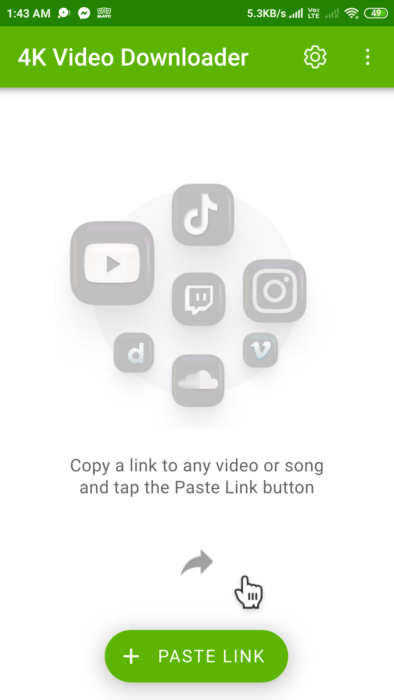
4K Video Downloader also claims it can fetch private YouTube videos that have restricted access. In addition to normal videos, the app also supports 360 videos and 3D videos that are available on platforms like YouTube.
Now, let’s come to the real deal, how to get the videos. You can download the app from itsofficial websiteand sideload it on your Android device. It is also available on the Huawei App Gallery.
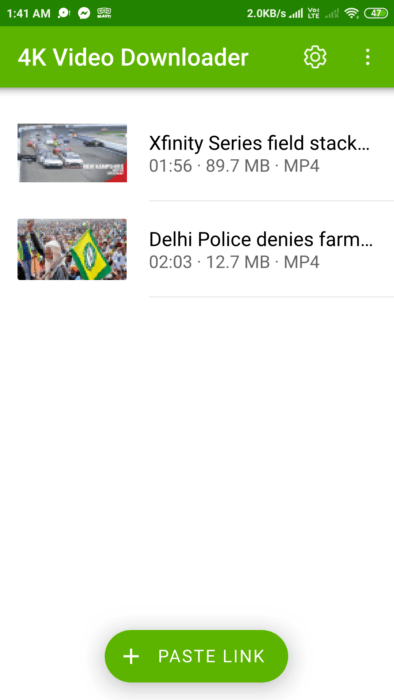
You need to get the video link first. On YouTube, tap on the three-dot menu next to the video, then tap on Share. From there you may copy the link to that video.
Next, open the app on your device and tap on the Paste Link. In a few moments, the app will fetch that video and start downloading. That’s it.
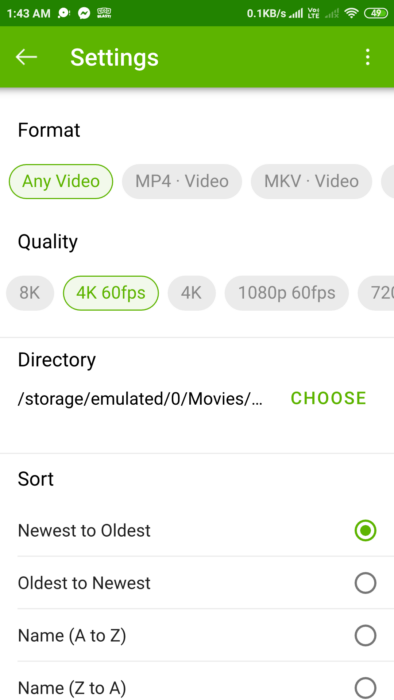
you’re able to tweak the settings related to the video by tapping the gear icon in the top right corner of the screen. Here, you can change various options like video format, quality, download location, and also sort the videos as per your preferences.
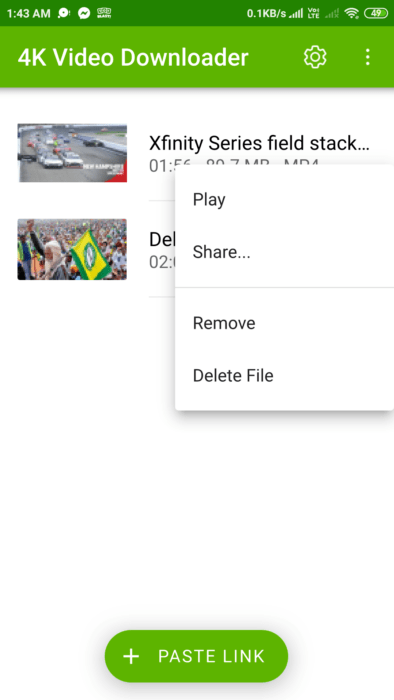
To share or delete a downloaded file, you can long-press on its name to reveal the desired options.
What’s the price of 4K Video Downloader?
One of the best things about this tool is that it’s completely free to use on Android devices. However, one thing to note is that its Android version can’t download playlists, channels, and subtitles. To do that, you need to get the desktop version of the4K Video Downloader.
Hope you like the tool. Don’t forget to share your thoughts in the comments below.
